Before you start
Have access to the Twitch and Kick accounts you want to connect. Open MultiChat.chat in the browser you will keep open during your stream. Connecting chat does not broadcast video or configure multistreaming.
1. Connect your accounts
Log in with Twitch. The first-run setup shows which platforms are connected. Choose Connect Kick and complete Kick’s authorization screen.
If you have already completed setup, open Settings → Accounts & connections. Connect or reconnect each account there. Approve the permissions you need for chat; if an account shows a reconnect notice, finish that step before testing.
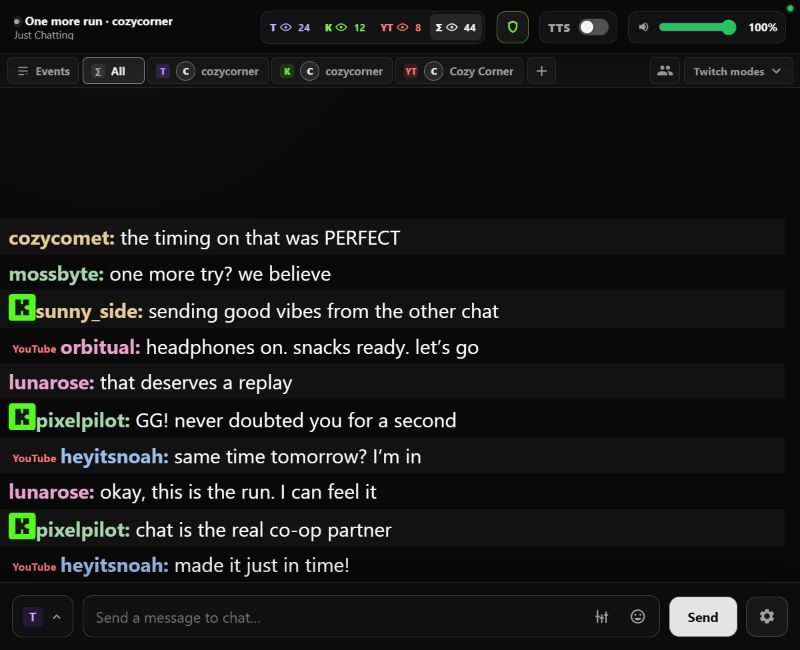
2. Check both chats
In the Kick account settings, make sure Read Kick chat messages is enabled. Send a normal test message in each platform’s own chat, then look for both messages in the MultiChat.chat dashboard.
Check the platform labels beside the messages. If you switch channels or filter the displayed chat, confirm that the channel you are testing is still selected.
3. Choose where replies go
Use the destination choices beside the chat composer to select the connected platform you want to reply to. Review the selected destinations before sending. Reading two chats in one place does not automatically relay every viewer’s message to the other platform.
If one chat is missing
- Check that the correct account is connected in Accounts & connections.
- Reconnect the affected platform if access has expired or permissions are missing.
- For Kick, check that reading chat is enabled.
- Try a new message after connecting; use current messages to confirm the connection.
You can use combined chat without speech. To hear eligible messages, follow the text-to-speech guide.
Keep setting up
Need a hand? contactizidore@gmail.com