Before you start
Connect at least one chat platform and confirm that messages reach your dashboard. Open the scene in OBS where you want chat to appear. The overlay displays chat; browser TTS is captured separately.
1. Copy your overlay URL
Open the dashboard’s Overlay settings, choose the profile you want to use, and select Copy OBS URL. First-run setup also offers an overlay step.
Keep this URL private: anyone with it can view that overlay. Do not paste it into public chat, screenshots, or a tutorial. If it is shared, replace it in Overlay settings and update OBS with the new URL.
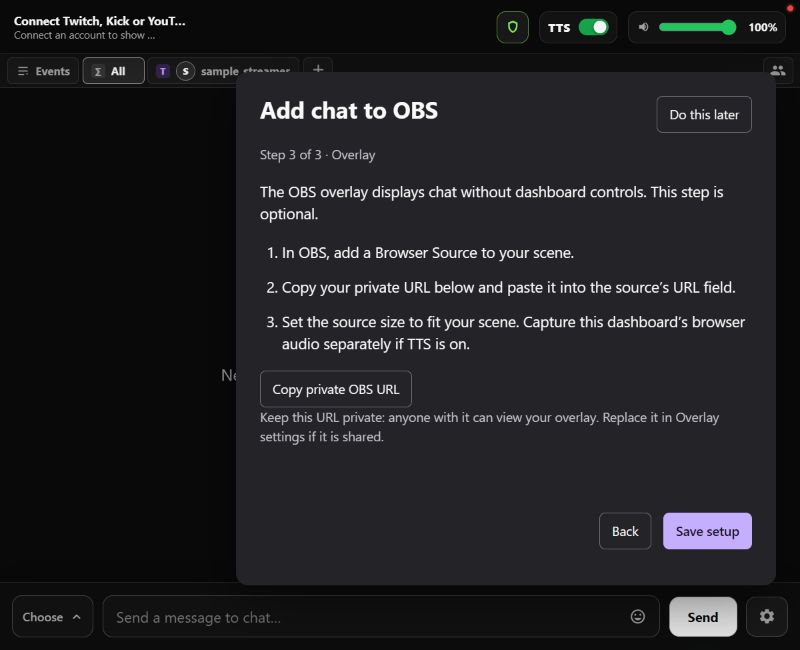
2. Add a Browser Source in OBS
In your OBS scene, use the + button in Sources, choose Browser, and give it a recognizable name such as “MultiChat chat”. Paste your copied URL into the source’s URL field.
Set the source width and height to suit the space reserved for chat, then confirm. Resize and position the source in the scene preview. Keep the full URL intact, including the token after the # character.
3. Check the result before going live
Send a new message from a connected platform. Confirm that it appears in the dashboard and in the OBS preview, with readable text at your final stream resolution.
Record a short local sample before broadcasting. Check that usernames and messages are not cropped and that the overlay fits around your camera and game. Change its appearance in Overlay settings as needed.
If the overlay is blank or silent
- If chat is missing, first confirm new messages arrive in the dashboard.
- Check that OBS has the complete URL and that its source is visible in the active scene.
- If you replaced the overlay URL, paste the new one into OBS and refresh the Browser Source.
- Silence is expected: this overlay does not play TTS. Capture the dashboard browser’s audio separately if you want speech on stream.
See the official OBS Browser Source guide for OBS-specific source settings, or our TTS guide for spoken chat.
Keep setting up
Need a hand? contactizidore@gmail.com